Every fleet owner has a version of this story: a truck that was running fine yesterday is suddenly stuck on the shoulder today, and now there’s a tow, a missed delivery, an angry client, and a repair bill that’s three times what it would have cost if the problem had been caught earlier.
This is what reactive maintenance looks like — fixing things after they break instead of before. It’s expensive, disruptive, and almost entirely avoidable if there’s a system actually tracking service needs instead of relying on memory. Here’s how TrackEnsure’s Garage → Maintenance module handles that, from setting up a service type to a mechanic closing it out in the field.
Setting Up a Service
Maintenance in TrackEnsure starts with defining Services — reusable service types like “Annual Service,” “Semi-Annual Check,” or “Camera Installation.” Each service is configured with:
- A trigger type — time (days, weeks, months), mileage (miles or km), or engine hours. This determines how the system calculates when the next service is due.
- An interval value — how often the service repeats, based on the trigger type.
- Repeat automatically — toggle this on and the service reschedules itself after each completion; leave it off for a one-time service.
- Service procedures — the actual tasks included, each tagged by type: Brake Check, Repair, Replacement, Diagnostic, Measurement, Adjustment, Cleaning, or Custom.
Once a service is created, it can be assigned to one truck, several trucks, or an entire fleet.
Assigning Services and Setting Notifications
When a service is assigned to a truck or trailer, you set the Remaining Interval (how many days, miles, or hours are left until it’s due) and configure Notification Rules — who gets alerted, how, and when.
- Notifications can go to the Truck Owner, the Current Driver, or Fleet Managers.
- Owners and drivers can be notified via the ELD app or email; fleet managers receive email only.
- Timing is flexible — for example, “notify 30 days before” or “5 days prior.”
- Multiple notification rules can be stacked on a single service, so different people get reminded at different intervals.
This is what turns maintenance from something someone has to remember into something the system actively surfaces before it becomes a problem.
Tracking Status From Scheduled to Completed
Every assigned service has a Service Status that reflects exactly where it stands:
- Scheduled — due, but not started
- In Progress — the driver has started the service in the mobile app
- Waiting for Approval — work is done and pending review
- Completed — approved by the fleet manager
A color-coded legend on the Trucks screen flags services by urgency (overdue, due soon by days/weeks/miles/km/engine hours, or newly added), so fleet managers can scan a full list of trucks and immediately see what needs attention.
What Happens in the Field
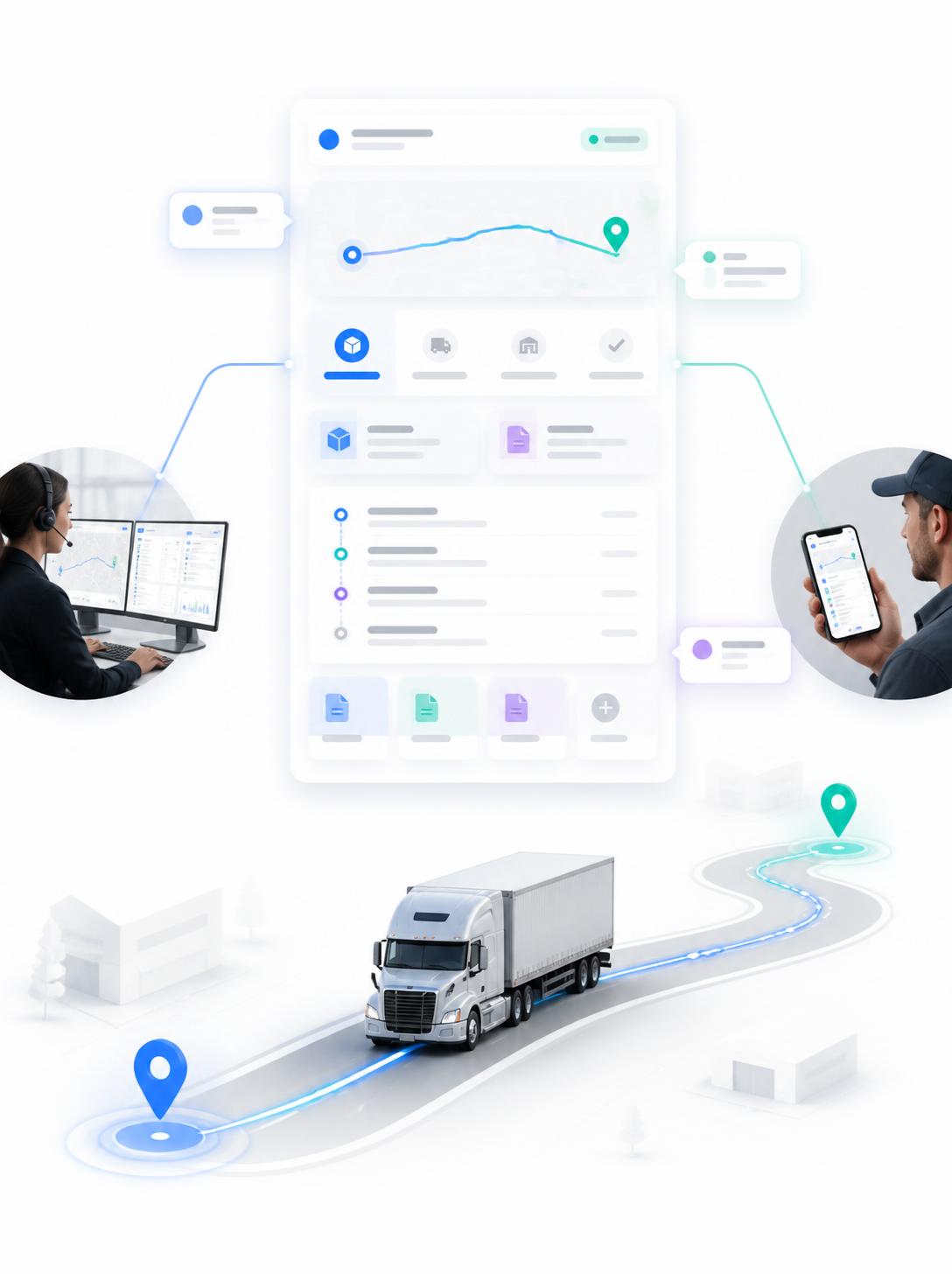
This is where TrackEnsure connects the office to the shop floor. From the mobile app, a driver or technician can:
- View all services assigned to their truck or trailer, filtered by status and sorted by time remaining
- Tap Start Service to move a job to “In Progress”
- Check off individual procedures (Oil Change, Tire Change, Brake Calibration, etc.) as they’re completed
- Attach photos, documents, and receipts as proof of work for each procedure
- Add comments explaining what was done
- Submit the job with Ready for Approve once everything’s complete
For brake-related work specifically, the system also supports a certification section (recording the shop, technician, and inspection standard used — CVSA Level I, FMCSA Appendix G, DOT Level II/III, etc.) and an axle diagram for logging measured vs. rated brake stroke on air drum brakes — details that matter a lot if a truck ever gets pulled into a roadside inspection.
Manager Review, Approval, or Rejection
Once a service is submitted, a fleet manager reviews it on the Service Details screen — truck info, service info, who performed the work, and everything attached — and either Approves or Declines it.
- If approved, the record moves to Completed and shows who approved it and when, plus any reviewer comments.
- If declined, the job goes back to In Progress with a comment explaining what needs to be fixed, and the driver can correct it and resubmit.
Nothing gets marked done until someone with authority actually signs off on it — which matters when service records need to hold up to an audit later.
Full History, On Demand
Every completed (or attempted) service lives in Service History, searchable by truck, date, status, and more. From there, fleet managers can:
- Download a report for a single truck or select multiple trucks and download in bulk
- Send a service record directly via email without downloading it first
- Mark a record as “sent” once it’s been shared with a client, insurer, or auditor, with a timestamp of who marked it and when
The Bottom Line
The fleets that avoid the worst breakdowns aren’t necessarily the ones with newer trucks — they’re the ones where every truck has a service schedule that’s actually being tracked, where drivers can log work from the field instead of a shop notebook, and where nothing gets marked “done” without someone checking it first.
That’s what TrackEnsure’s Garage → Maintenance module is built to do: turn maintenance from a mental checklist into a system with a paper trail, from the moment a service is scheduled to the moment it’s approved.